 Copybala
 User Guide
Everything Copybala can do, step by step. Shortcuts below are the defaults; you can change them in Settings › Shortcuts.
1. Getting started
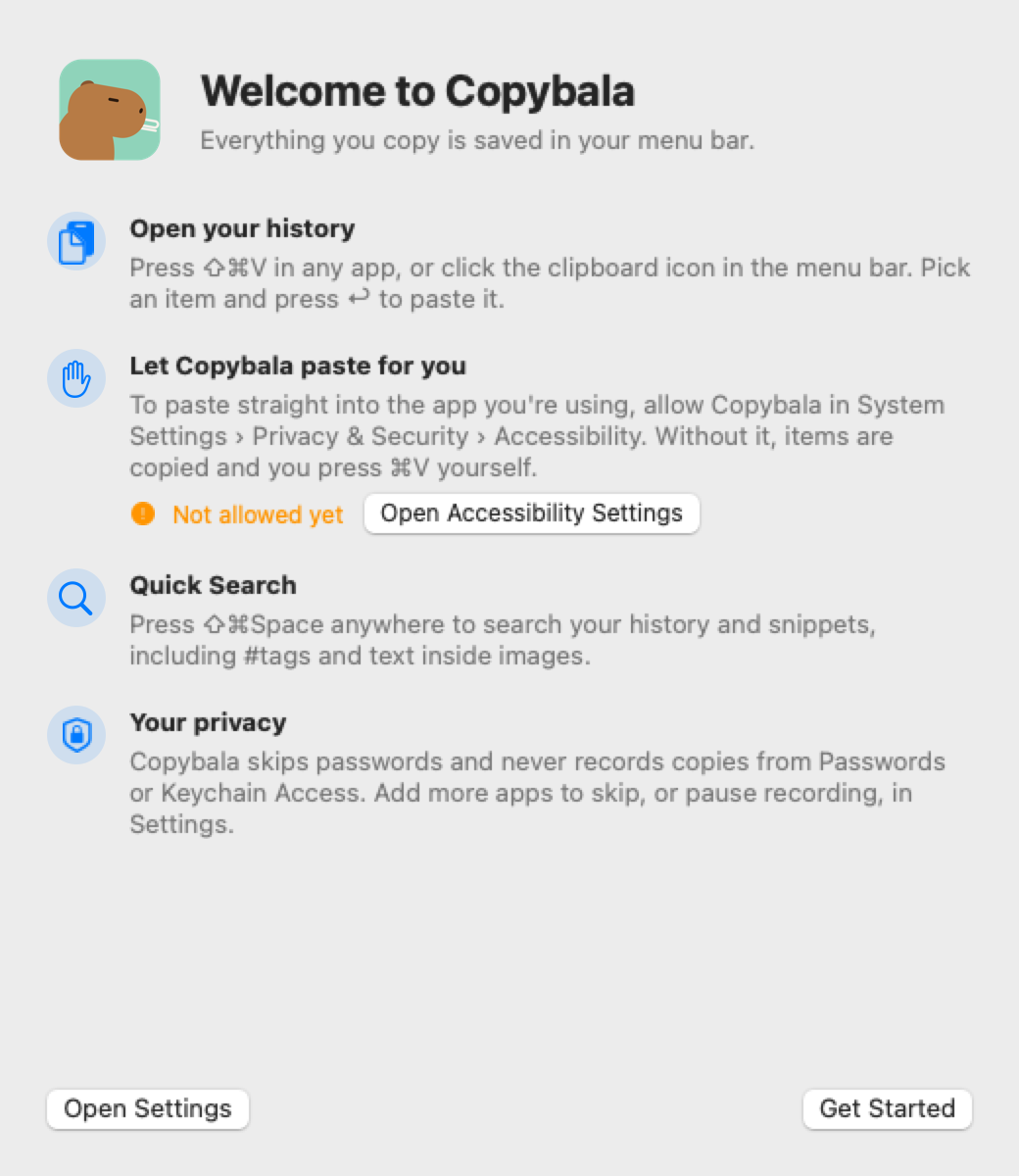
- Install Copybala from the Mac App Store and open it. A capybara icon appears in the menu bar at the top of your screen. Copybala has no Dock icon.
- The Welcome window explains the basics. Click Open Accessibility Settings and turn on Copybala in System Settings › Privacy & Security › Accessibility. The status changes to Allowed right away.
- Copy anything as usual (⌘C). Copybala saves it in the background.
- Press ⇧⌘V to open your history, pick an item and press ↩. It's pasted into the app you were using.
You can open the Welcome window again from the gear menu › Welcome Guide…. To start Copybala automatically, turn on Launch at login in Settings.
2. History
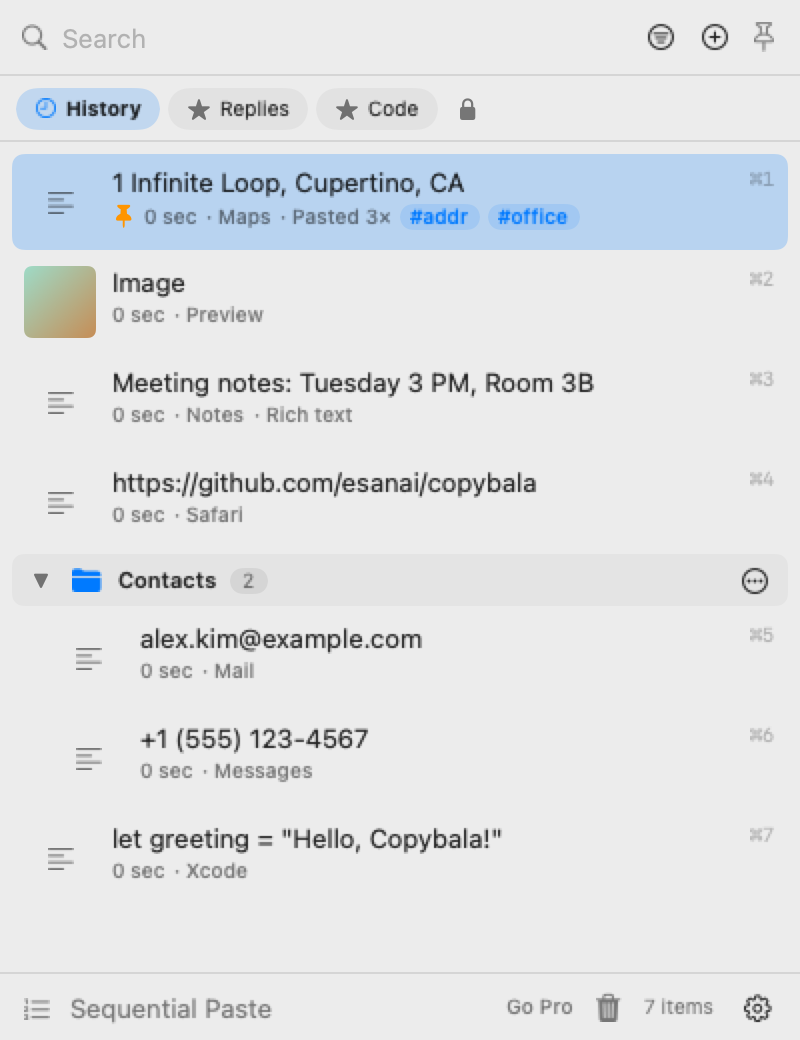
Open the history with ⇧⌘V or by clicking the menu bar icon. The newest items are on top.
- Paste: select with ↑ ↓ (or click an item) and press ↩, or hover over an item and click its paste button. Clicking an item only selects it. ⌘1–⌘9 paste the numbered item directly.
- Search: just start typing. Copybala searches the text, the app you copied from, #tags and text inside images.
- Search: just start typing, or click the magnifying glass at the top. Press esc to close the search.
- Filter: the filter button at the top shows only text, rich text, links, images or files.
- Add your own: the + button adds typed text or files. You can also drag files from Finder onto the list.
- Keep it on screen: the pin button at the top right turns the history into a window that stays on top of other apps.
Copybala keeps 200 items by default (pinned items don't count). Change it in Settings › History size.
3. Quick Search
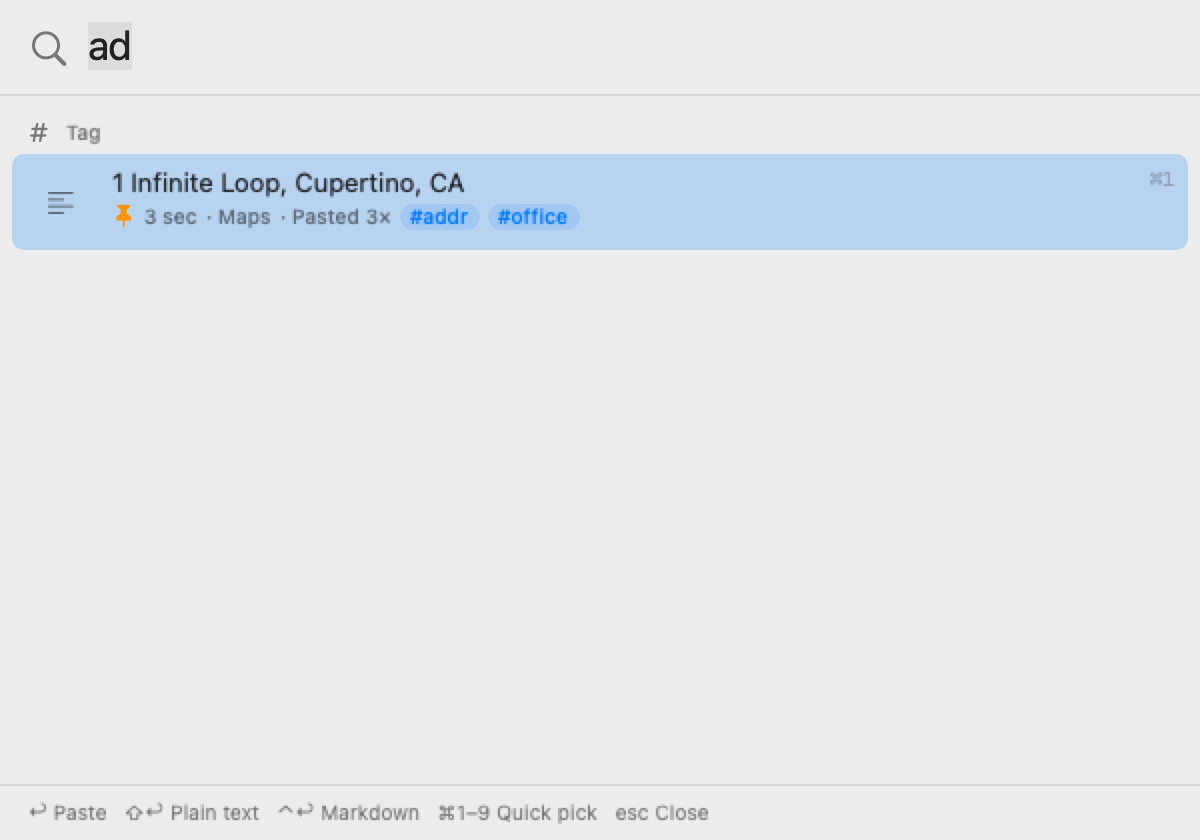
Press ⇧⌘Space in any app. A search bar appears over what you're doing, without switching apps.
- It searches your history and all snippet tabs together.
- Items you paste most often come first. Items whose #tag matches what you type jump to the top.
- ↩ pastes, ⇧↩ pastes as plain text, ⌃↩ pastes as Markdown, ⌘1–⌘9 pick a numbered result, Space (with an empty search) previews, esc closes.
4. Snippets
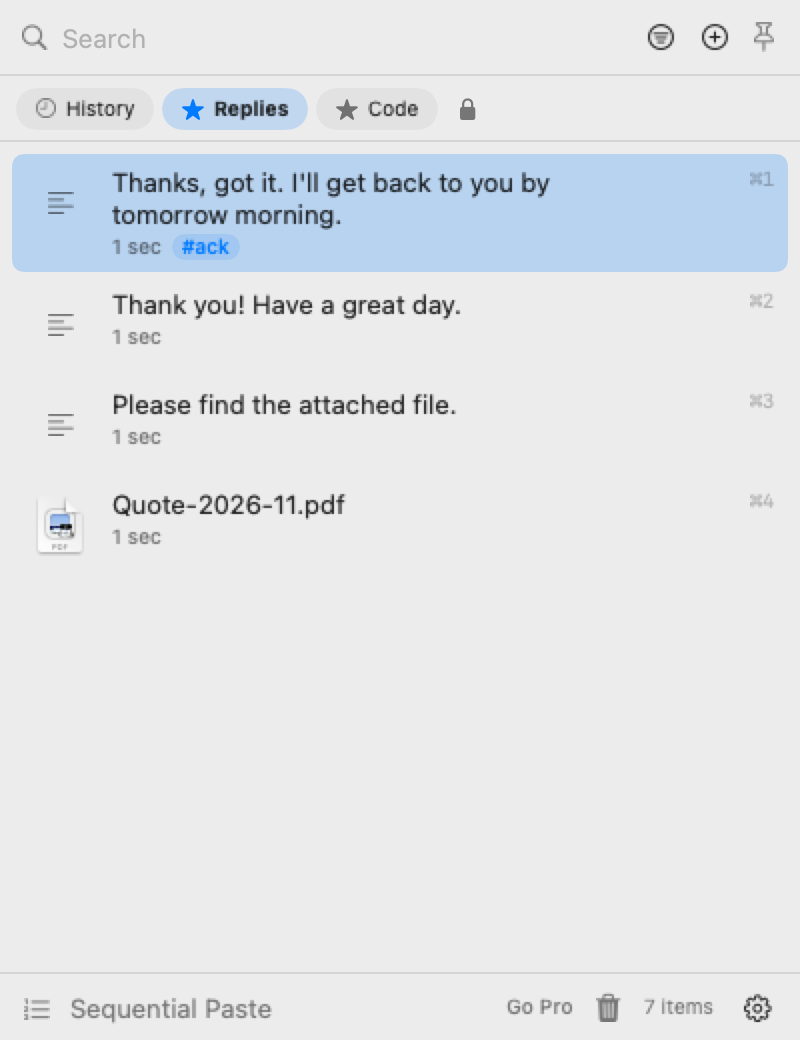
Snippets are text, images and files you keep for good, sorted into tabs such as "Replies" or "Code". They never expire.
- New tab: click + at the end of the tab bar. Double-click a tab to rename it. Drag tabs to reorder them.
- Add to snippets: right-click an item › Copy to Snippets, or drag it onto a tab.
- Move between tabs: right-click › Move to, or drag the item onto another tab (including History).
- Copy straight into a tab: while a snippet tab is selected, anything new you copy is added to that tab too (and to History). Switch back to History to stop.
- Paste snippets just like history items. Editing, tags and preview work the same way.
The free version allows 2 snippet tabs. Copybala Pro removes the limit.
6. Sequential Paste
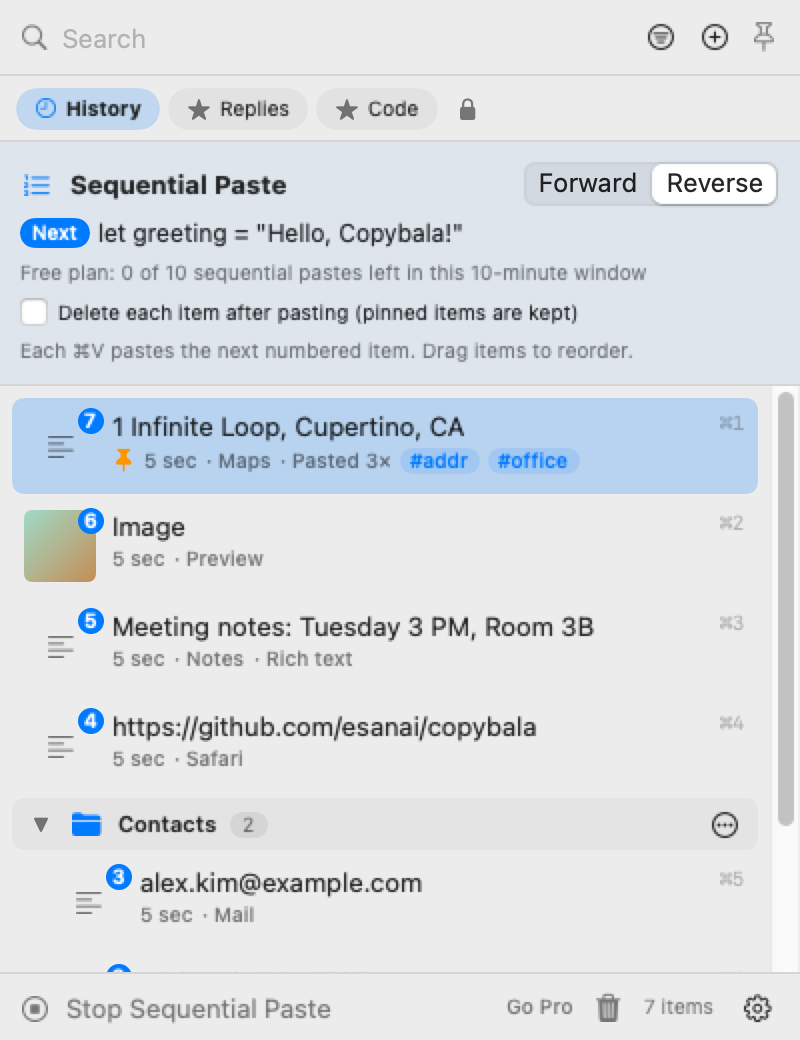
Paste a list of things in order, one per ⌘V. Perfect for filling in forms or spreadsheets.
- Click Sequential Paste at the bottom of the history (or press ⌃⌥⌘C anywhere).
- Copy the items in the order you want, or use what's already in the list. Drag items to change the order; numbers show the paste order.
- Press ⌘V repeatedly. Each press pastes the next item. Without Accessibility permission, use ⌃⌘V instead.
- Forward / Reverse chooses top-to-bottom or bottom-to-top.
- To start from a specific item, select it and press ⌥↩.
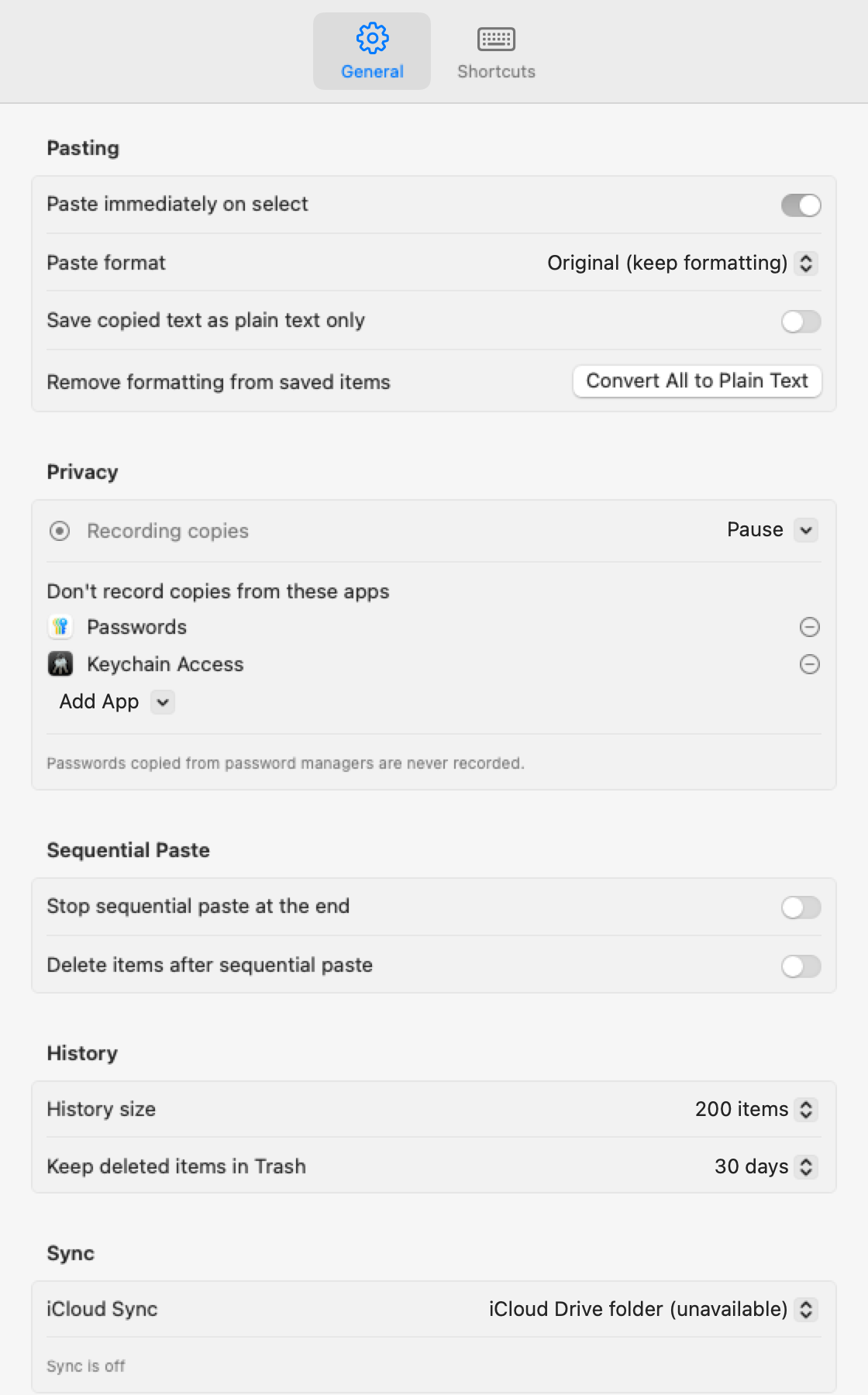
- Sequential paste turns itself off after the last item is pasted. Option: delete each item after it's pasted (pinned items are kept).
The free version allows 10 sequential pastes every 10 minutes.
7. Plain text & Markdown
- ↩ pastes in the default format (Settings › Paste format: Original, Plain text or Markdown).
- ⇧↩ or ⇧-click pastes without formatting. ⌃↩ or ⌃-click converts rich text to Markdown (headings, bold, italics, links, lists, code).
- Anywhere: ⌥⇧⌘V pastes the current clipboard as plain text, ⌃⌥⌘V as Markdown.
- To store everything as plain text, turn on Settings › Save copied text as plain text only, or use Convert All to Plain Text.
8. Preview
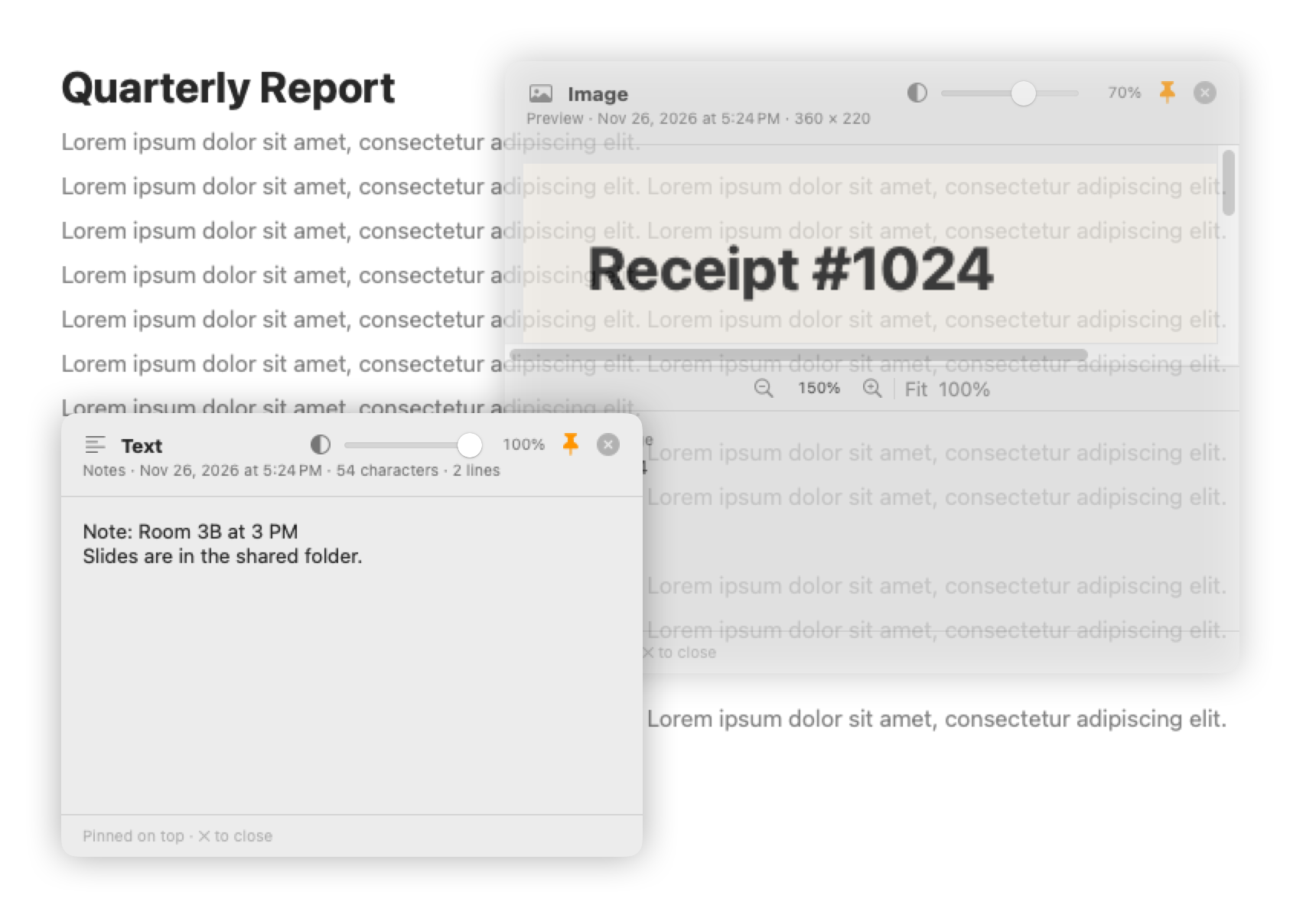
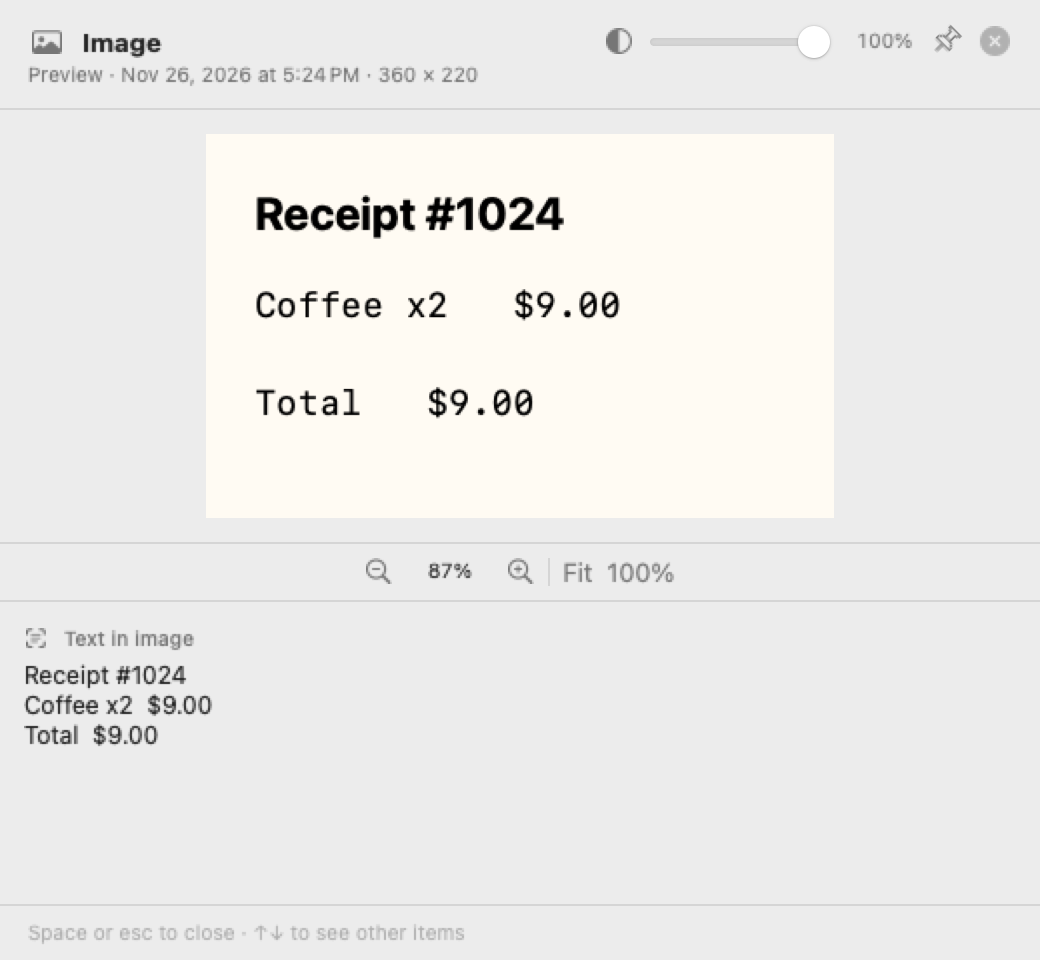
Select an item and press Space (or click the 👁 button on image and file rows). The preview opens next to the history and follows your selection as you press ↑ ↓.
- Text: the full text, which you can select and copy.
- Code: copied source code is detected automatically (Swift, Python, JavaScript, SQL, shell and more) and shown with syntax colors and line numbers. The language appears at the top.
- Images: zoom with the − / + buttons at the top, Fit, 100%, or pinch on the trackpad. If Copybala found text in the image, click Text in image at the top to show or hide it. Images without text don't show it at all.
- Files: shown with Quick Look (PDFs, documents, media…).
- Keep on top: click the pin to keep the preview above all windows, even other apps in full screen. Preview another item and it opens in a new window, so you can pin several at once.
- Opacity: drag the slider (20–100%) to see the apps behind the preview. Only the content fades; the top bar stays solid so the controls are easy to use.
- Close: press Space or esc, or use the window's close button. Pinned previews stay until you close their window.
9. Images, files & links
- Text in images: Copybala reads text in copied images on your Mac (nothing is uploaded). Search for a word in a screenshot and it shows up; the row shows the first words.
- Files: add files with + › Add Files… or by dragging them in. Copybala keeps its own copy, so you can paste the file even after moving the original. Files stay on this Mac and aren't synced.
- Links: link rows show a ↗ button that opens the page in your browser. Right-click › Open Link or ⌘O works too.
- Share by link or QR code (Pro): right-click an item › Share Link or QR Code…, pick how long the link lasts (1 hour to 7 days) and click Create Link. Send the link or let someone scan the QR code; they can view and copy the item in any browser, without Copybala or an Apple account. Items up to 10 MB. Stop Sharing removes it right away.
- Search the web: right-click a text item › Search with Google. Right-click an image › Search Image with Google Lens to find where it came from or what's in it. Pick another search engine (Bing, DuckDuckGo, Naver, Daum) in Settings › Search.
10. Pins, groups & editing
- Pin: ⌘P or right-click › Pin. Pinned items stay on top and are never removed by the history limit.
- Edit: double-click a text item or press ⌘E. Save with ⌘↩.
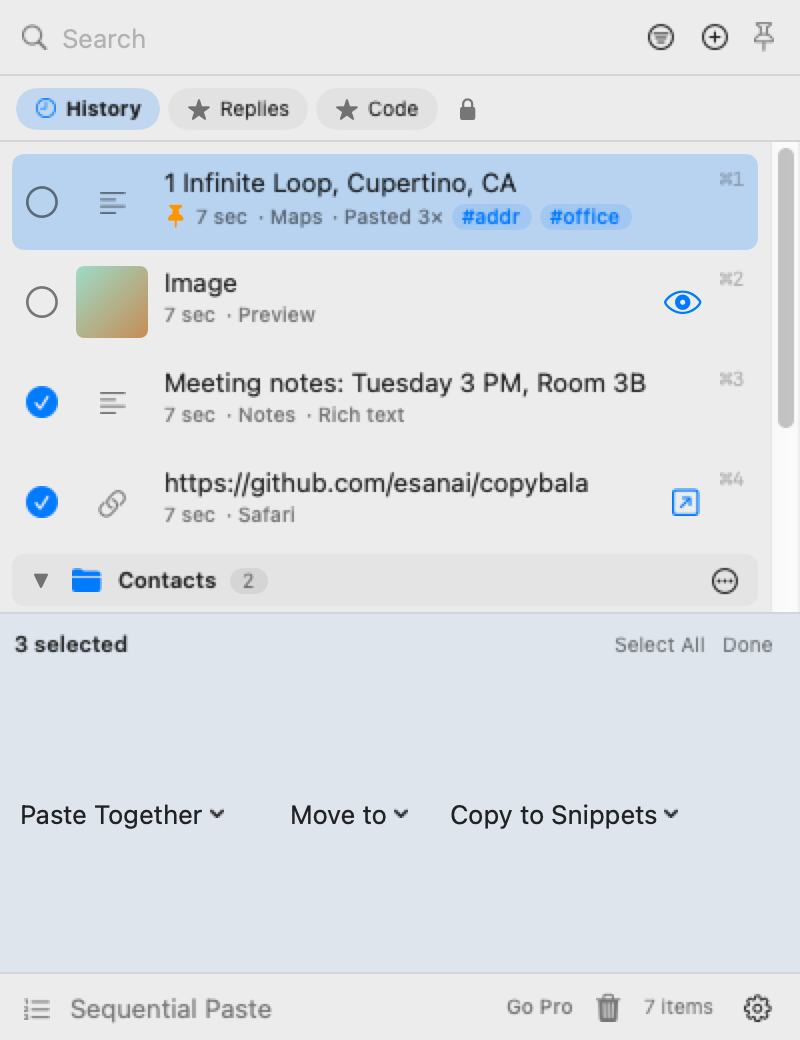
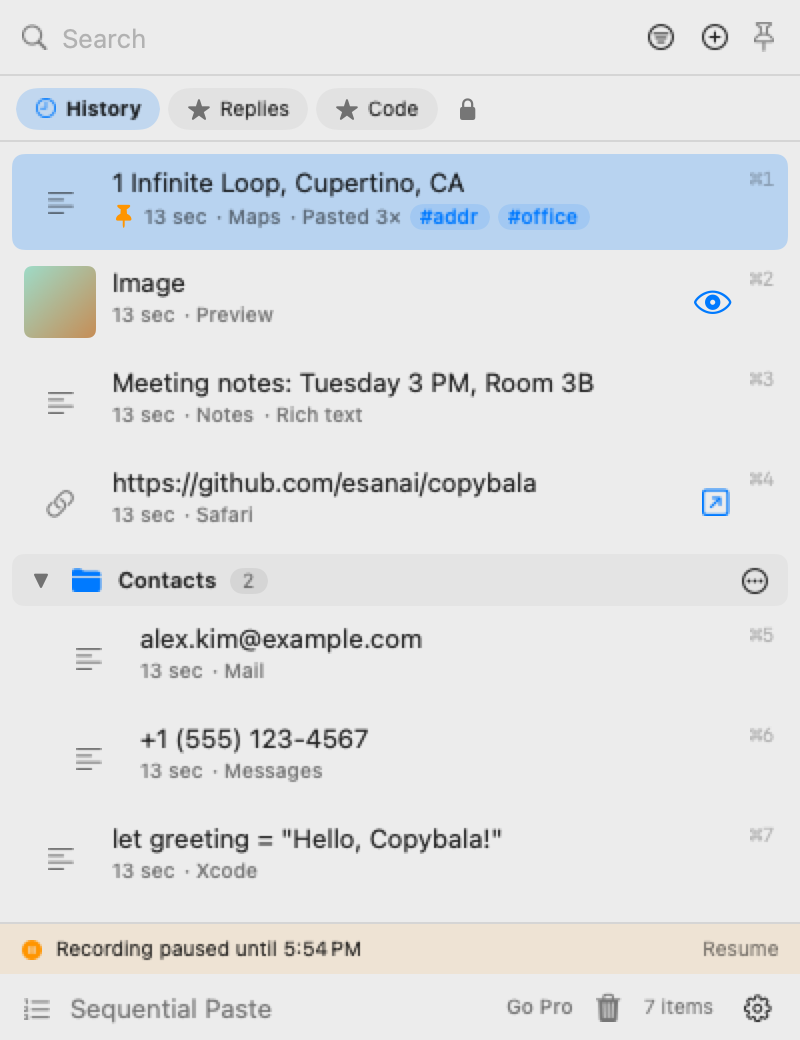
- Select several: ⌘-click adds or removes an item, ⇧-click selects a range, ⌘A selects everything visible. Then merge them into one, group them, paste them together, convert to plain text, pin or delete.
- Groups: click the triangle to fold a group, drag items in or out, double-click the group name to rename it.
- Reorder: drag items in the list.
11. Trash
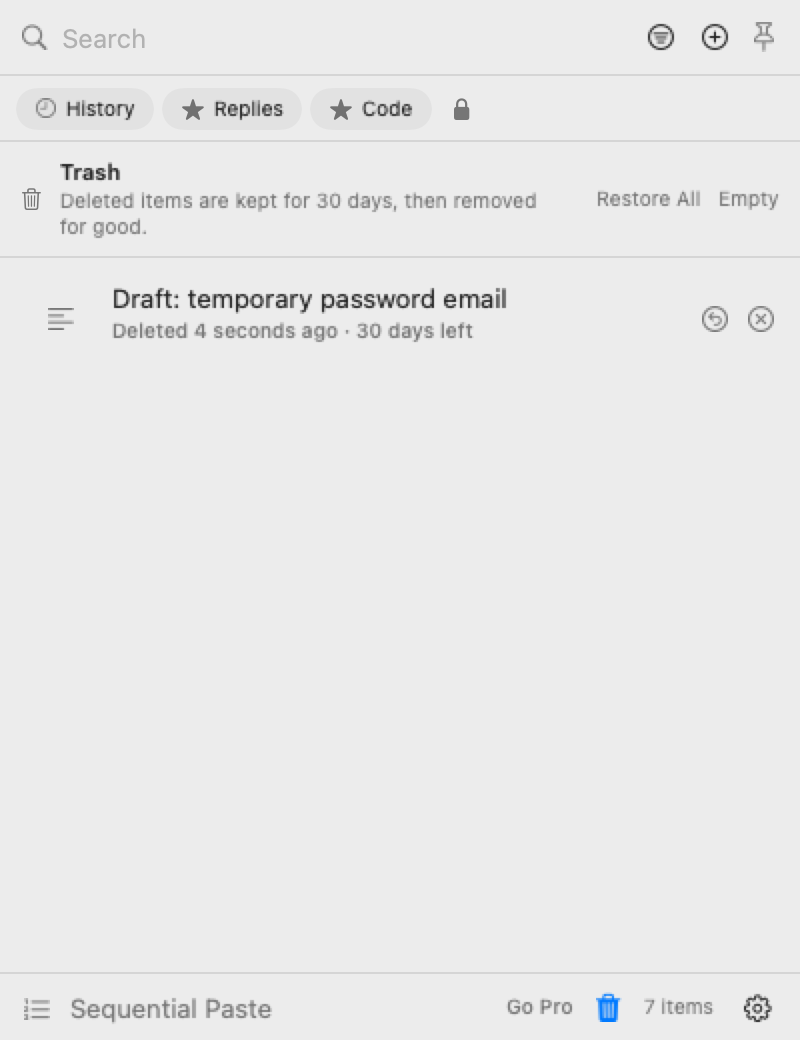
Deleted items (⌫ or ⌘⌫) go to the Trash. Click the trash button at the bottom of the history to see them, then Restore or Delete Now. Items are kept for 30 days by default; change it in Settings › Keep deleted items in Trash, or choose "Don't keep" to delete immediately.
12. Privacy
- Passwords copied from password managers are never recorded.
- Skip apps: Settings › Privacy › Add App. Nothing you copy in those apps is saved. Passwords and Keychain Access are skipped from the start.
- Pause recording: gear menu › Pause Recording for 5 minutes, 30 minutes, 1 hour or until you resume. An orange bar shows while paused.
- Your data stays on your Mac and in your own iCloud account. Copybala has no analytics, ads or tracking. See the Privacy Policy.
13. iCloud sync
Use the same history and snippets on every Mac signed in to your Apple Account. Choose a method in Settings › iCloud Sync:
- iCloud Drive folder (default): stores items in a Copybala folder in iCloud Drive.
- CloudKit: syncs through your private iCloud database; usually faster.
- Off: keep everything on this Mac only.
History, snippets, tags, paste counts, the Trash and text found in images all sync. Files you add stay on the Mac where you added them. When the same item is changed on two Macs, the latest change wins.
14. Shortcuts
Change any of these in Settings › Shortcuts: click a shortcut and press the new keys. ⌫ turns it off, esc cancels, ↺ restores the default.
In any app
| Keys | Action |
|---|---|
| ⇧⌘V | Open history |
| ⇧⌘Space | Quick Search |
| ⌃⌥⌘C | Turn sequential paste on/off |
| ⌃⌘V | Paste next item in sequence |
| ⌥⇧⌘V | Paste clipboard as plain text |
| ⌃⌥⌘V | Paste clipboard as Markdown |
In the history window
| Keys | Action |
|---|---|
| ↑ ↓ | Move selection |
| ↩ | Paste |
| ⇧↩ | Paste as plain text |
| ⌃↩ | Paste as Markdown |
| ⌥↩ | Start sequential paste from this item |
| ⌘1–⌘9 | Paste the numbered item (add ⇧ for plain text, ⌃ for Markdown) |
| Space | Preview |
| ⌘O | Open link in browser |
| ⌘E | Edit text |
| ⌘P | Pin / unpin |
| ⌫ / ⌘⌫ | Delete the selected item(s) (move to Trash). ⌫ alone works when the search field is empty. |
| ⌘A | Select all visible items |
| ⌘, | Open Settings |
| esc | Close preview, clear selection or close the window |
15. Settings
Open Settings from the gear menu at the bottom of the history, or press ⌘,. The General tab covers pasting, privacy, sequential paste, history size, Trash, sync, language (English or Korean) and launch at login. The Shortcuts tab changes every shortcut.
16. Copybala Pro
Copybala is free. Copybala Pro is a yearly subscription ($4.99 in the US; prices vary by country) that adds unlimited sequential paste, unlimited snippet tabs and a Pro app icon with a tangerine on the capybara's head. Start it from Go Pro at the bottom of the history. Use Restore Purchases in the gear menu on a new Mac. Manage or cancel it in App Store › your name › Account Settings › Subscriptions.
17. Troubleshooting
Choosing an item doesn't paste
Allow Copybala in System Settings › Privacy & Security › Accessibility. If it's already on, turn it off and on again, then restart Copybala. Also check that Paste immediately on select is on in Settings.
A shortcut doesn't work
Another app may use the same keys. Settings › Shortcuts shows an orange warning when that happens. Choose different keys there.
Something I copied isn't in the history
Check whether recording is paused (orange bar), whether the app is in Settings › Privacy, and whether it came from a password manager.
Items don't appear on my other Mac
Use the same sync method on both Macs and sign in to the same Apple Account with iCloud Drive turned on. The status under Settings › iCloud Sync shows the last sync.